StoryCode

'전체 글'에 해당되는 글 570건

  1. PowerMockup, Nice blueprint tool for web, app
  2. 환경 설정 및 매뉴얼
  3. 문자.substring

PowerMockup, Nice blueprint tool for web, app

BluePrint, 기획
반응형

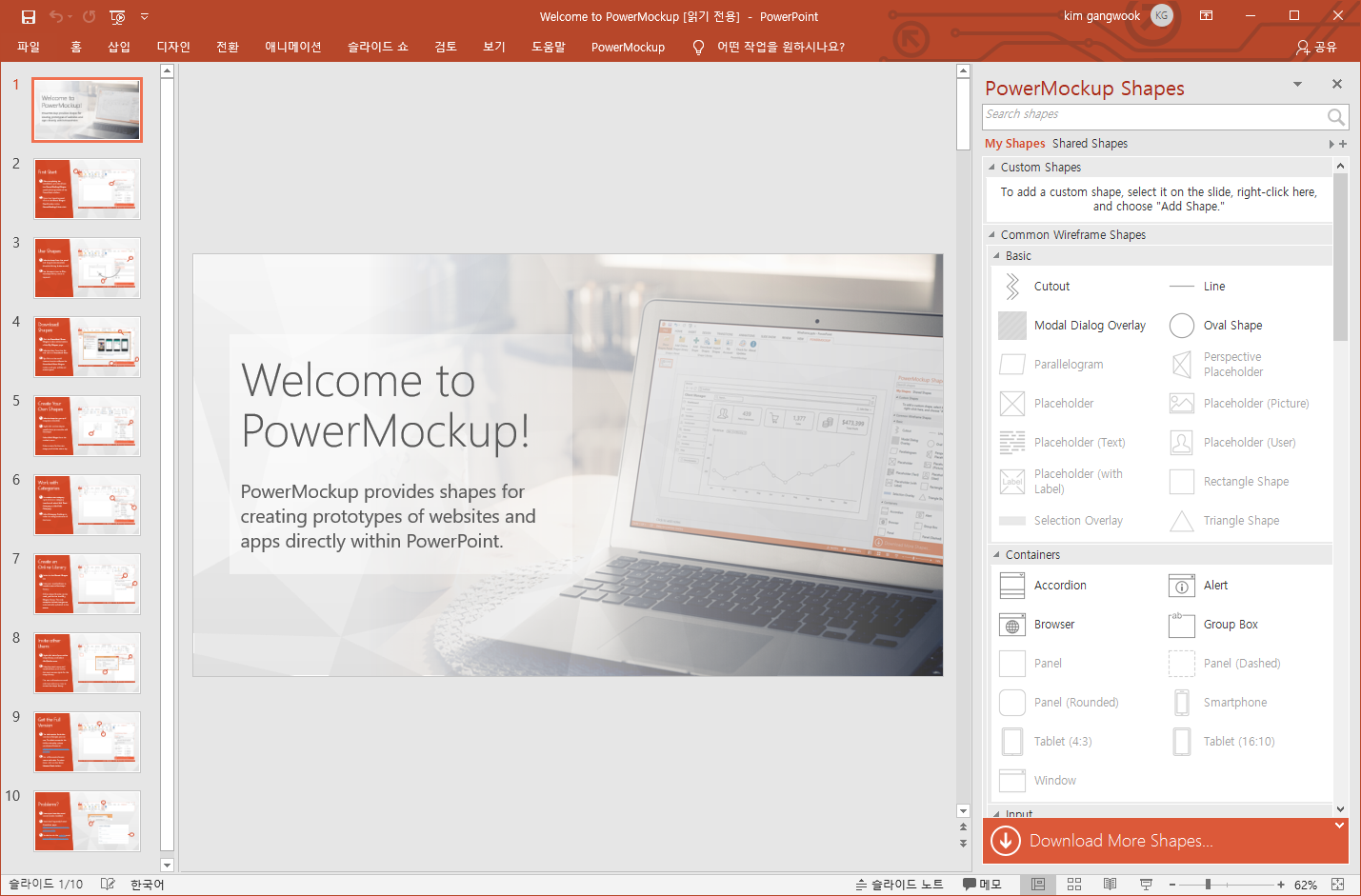
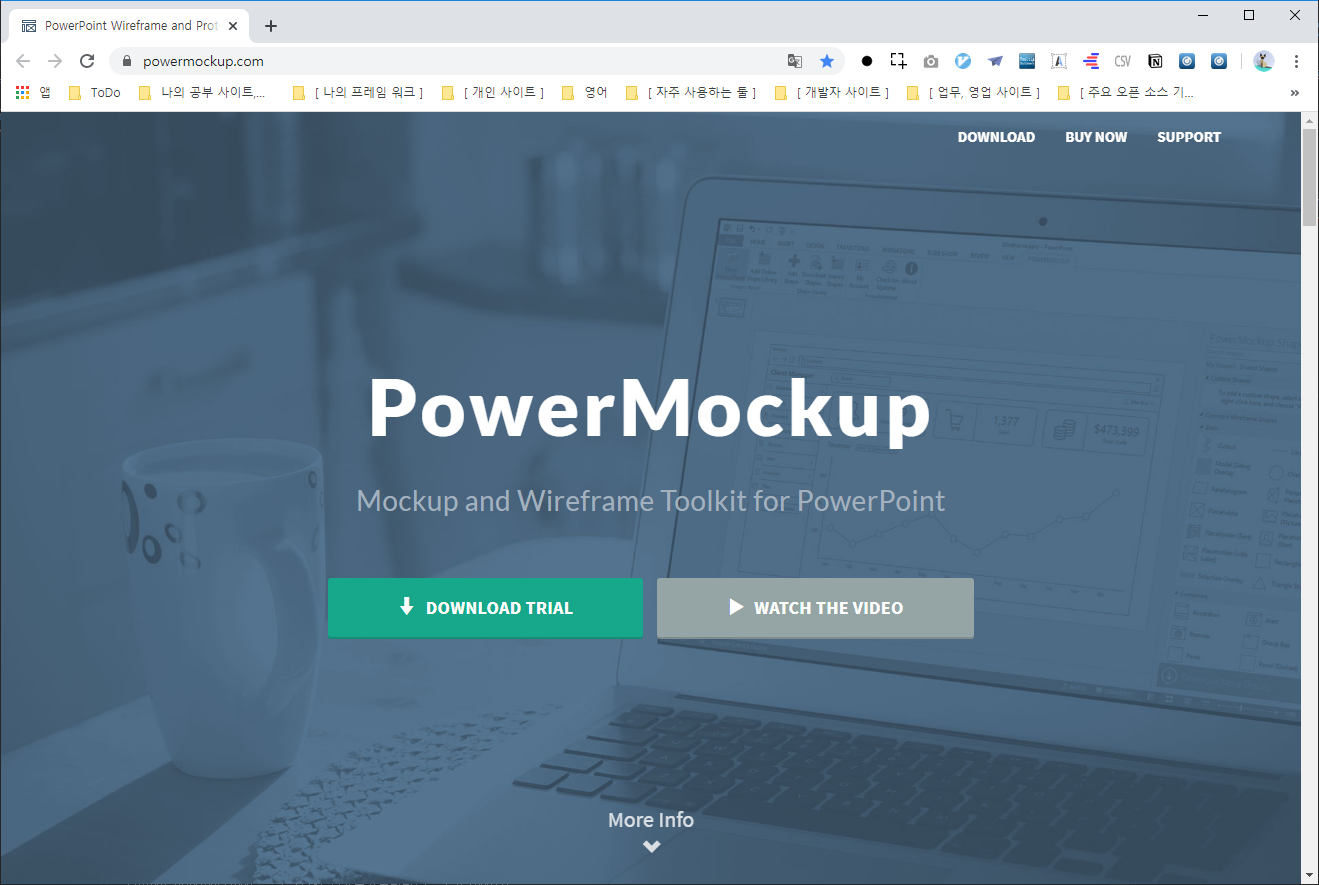
1. Visit powermockup.com & DOWNLOAD TRIAL


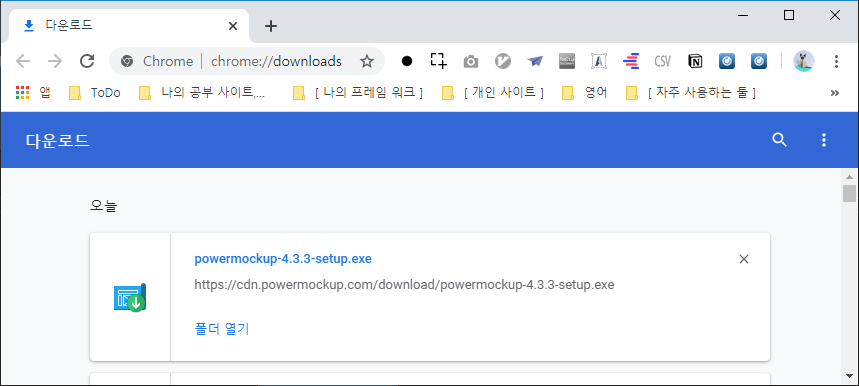
2. Close PowerPoint and Install PowerMockup


3. You can find "PowerMockup Menu" at Right side of powerpoint.


4. You can use PowerMockup Menu, After "New" like below.

5. But, you can use 4 item per each menu now.

Ask CTO to buy PowerMockup at here https://www.powermockup.com/order.


Thanks.


반응형

환경 설정 및 매뉴얼

C#/Capturing Web, Selenium
반응형

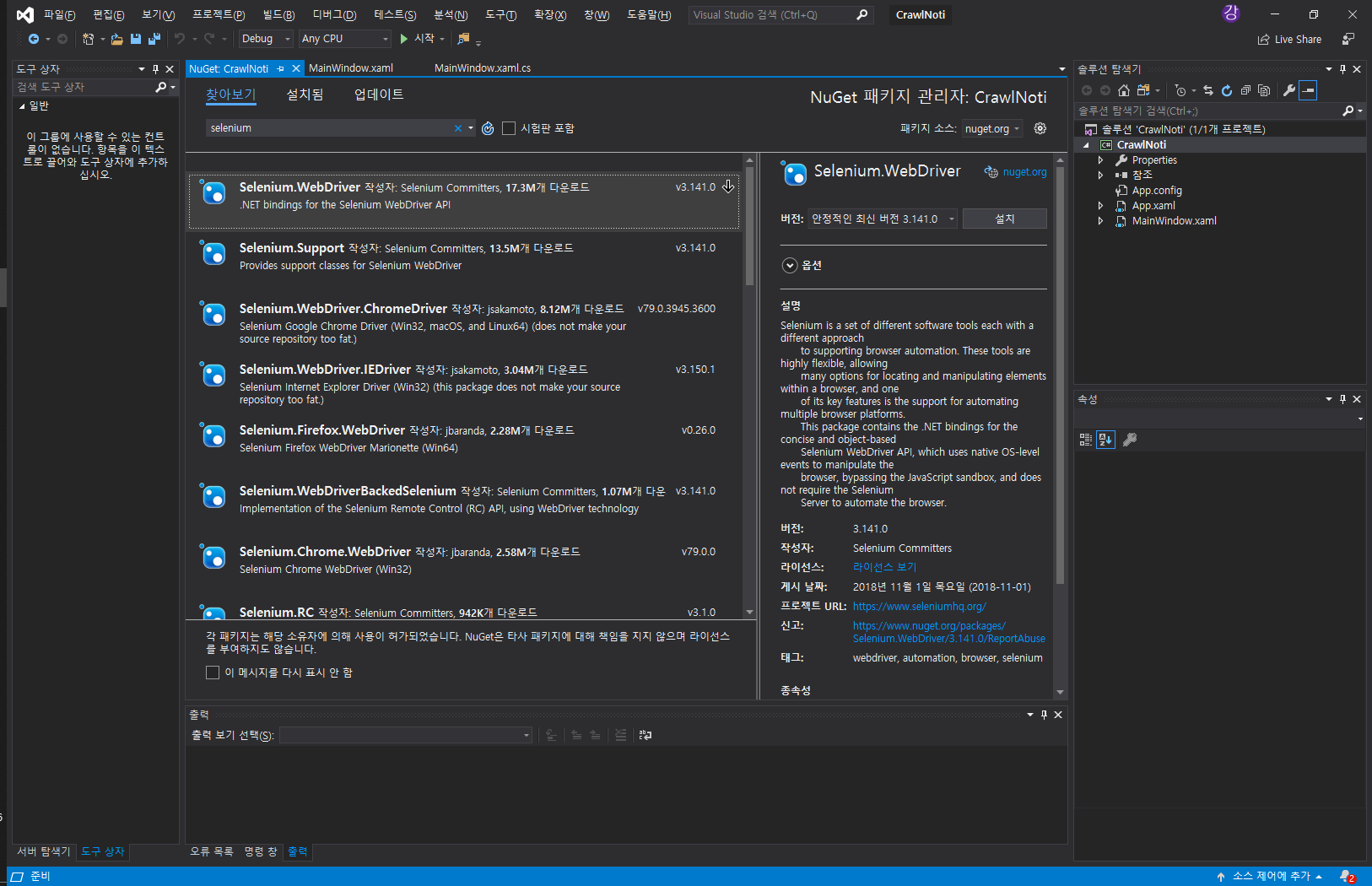
1.1) Nuget 에서 Selenium.WebDriver 설치

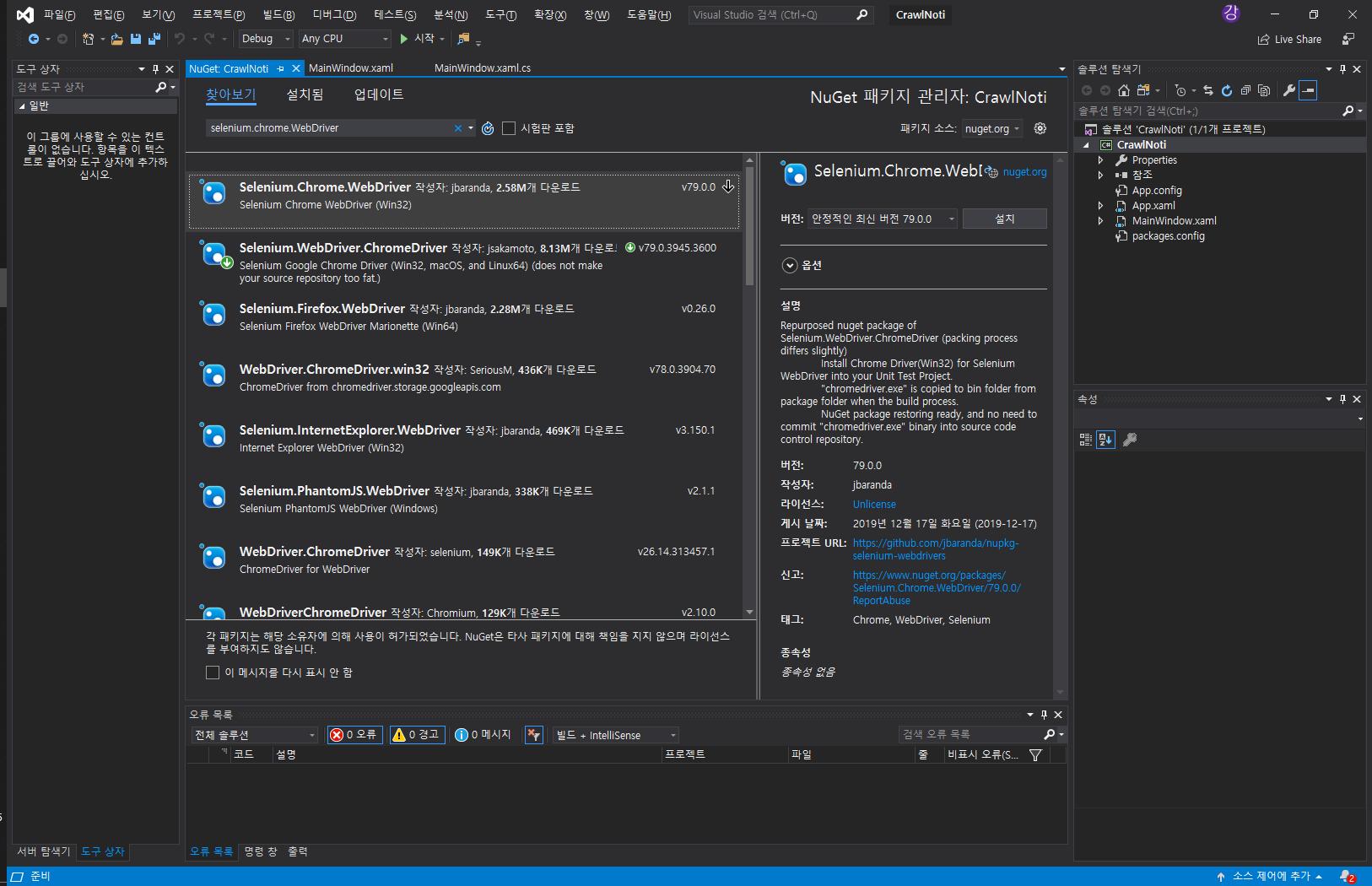
1.2) Nuget 에서 Selenium.Chrome 설치


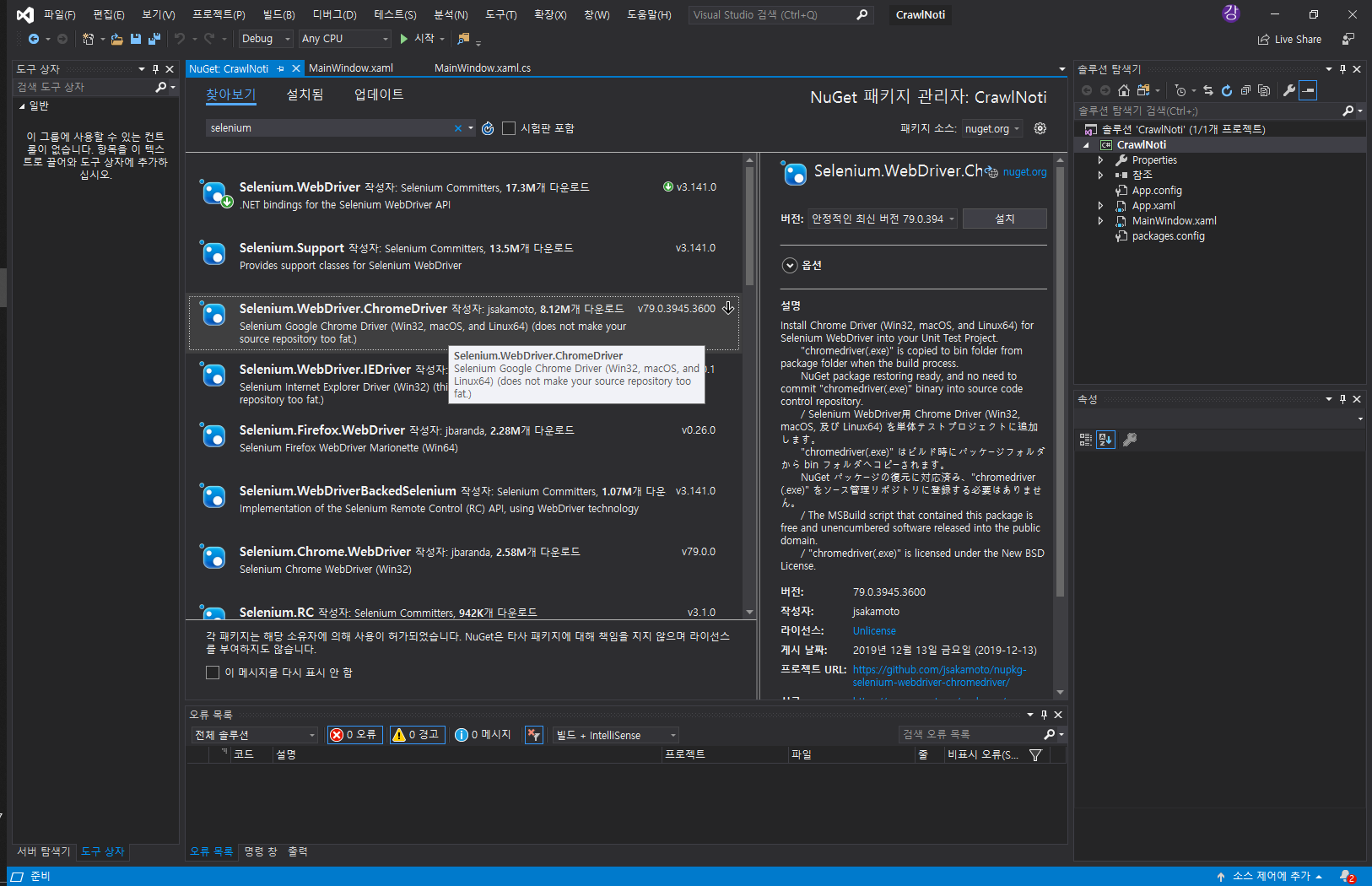
1.3) Nuget 에서 Selenium.WebDriver.ChromeDriver 설치


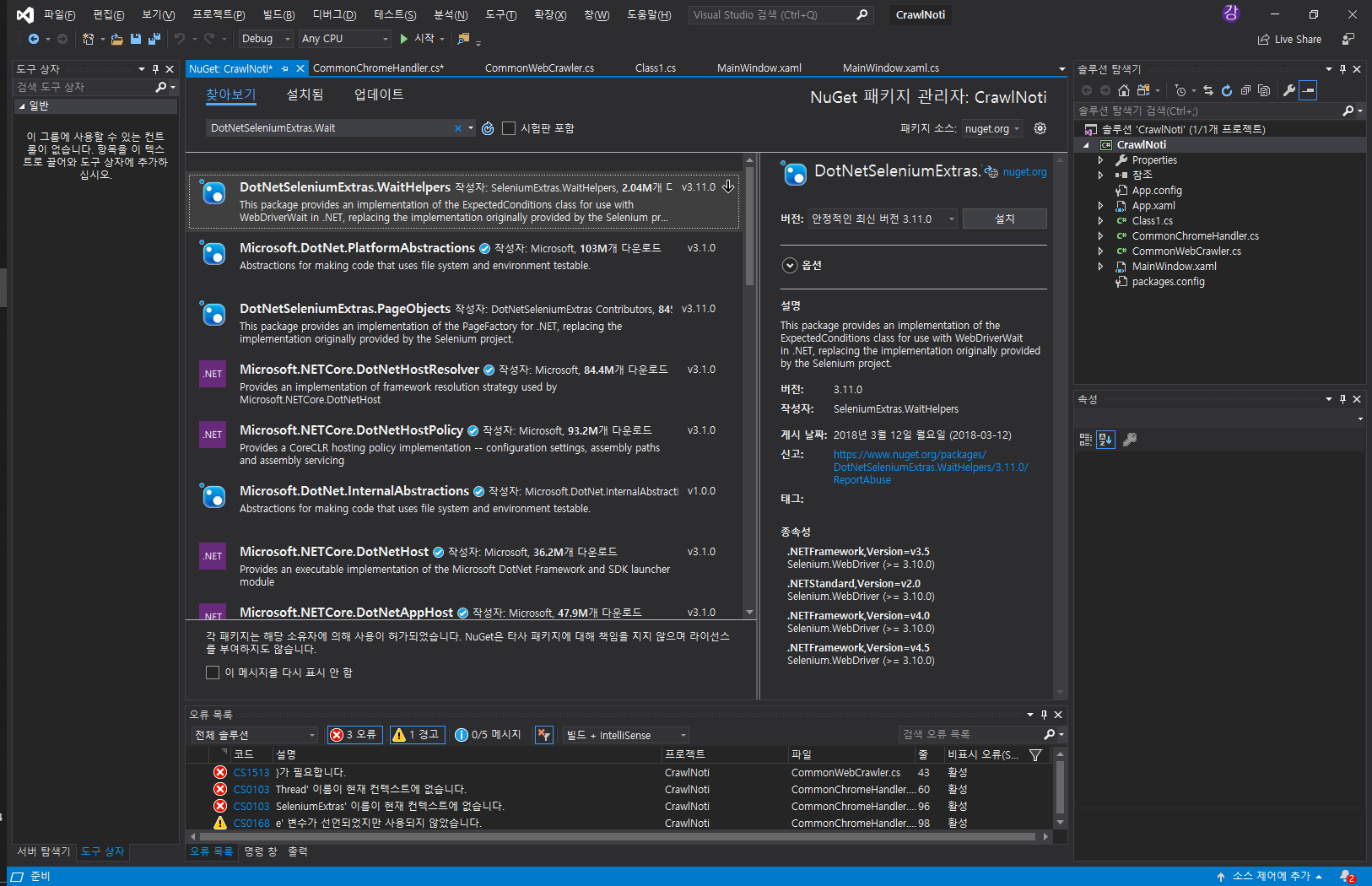
1.4) DotNetSeleniumExtras.WaitHelpers 설치


4.1) 초기화

// NuGet: Selenium.WebDriver.ChromeDriver
using OpenQA.Selenium.Chrome;
IWebDriver driver = new ChromeDriver();
// NuGet: Selenium.Mozilla.Firefox.Webdriver
using OpenQA.Selenium.Firefox;
IWebDriver driver = new FirefoxDriver();
// NuGet: Selenium.WebDriver.PhantomJS
using OpenQA.Selenium.PhantomJS;
IWebDriver driver = new PhantomJSDriver();
// NuGet: Selenium.WebDriver.IEDriver
using OpenQA.Selenium.IE;
IWebDriver driver = new InternetExplorerDriver();
// NuGet: Selenium.WebDriver.EdgeDriver
using OpenQA.Selenium.Edge;
IWebDriver driver = new EdgeDriver();

4.2) Locators

this.driver.FindElement(By.ClassName("className"));
this.driver.FindElement(By.CssSelector("css"));
this.driver.FindElement(By.Id("id"));
this.driver.FindElement(By.LinkText("text"));
this.driver.FindElement(By.Name("name"));
this.driver.FindElement(By.PartialLinkText("pText"));
this.driver.FindElement(By.TagName("input"));
this.driver.FindElement(By.XPath("//*[@id='editor']"));
// Find multiple elements
IReadOnlyCollection<IWebElement> anchors = this.driver.FindElements(By.TagName("a"));
// Search for an element inside another
var div = this.driver.FindElement(By.TagName("div")).FindElement(By.TagName("a"));

4.3) 기본 객체 처리

IWebElement element = driver.FindElement(By.Id("id"));
element.Click();
element.SendKeys("someText");
element.Clear();
element.Submit();
string innerText = element.Text;
bool isEnabled = element.Enabled;
bool isDisplayed = element.Displayed;
bool isSelected = element.Selected;
IWebElement element = driver.FindElement(By.Id("id"));
SelectElement select = new SelectElement(element);
select.SelectByIndex(1);
select.SelectByText("Ford");
select.SelectByValue("ford");           
select.DeselectAll();
select.DeselectByIndex(1);
select.DeselectByText("Ford");
select.DeselectByValue("ford");
IWebElement selectedOption = select.SelectedOption;
IList<IWebElement> allSelected = select.AllSelectedOptions;
bool isMultipleSelect = select.IsMultiple;

4.4) 고급 객체 처리

// Drag and Drop
IWebElement element = 
driver.FindElement(By.XPath("//*[@id='project']/p[1]/div/div[2]"));
Actions move = new Actions(driver);
move.DragAndDropToOffset(element, 30, 0).Perform();
// How to check if an element is visible
Assert.IsTrue(driver.FindElement(By.XPath("//*[@id='tve_editor']/div")).Displayed);
// Upload a file
IWebElement element = driver.FindElement(By.Id("RadUpload1file0"));
String filePath = @"D:WebDriver.Series.TestsWebDriver.xml";
element.SendKeys(filePath);
// Scroll focus to control
IWebElement link = driver.FindElement(By.PartialLinkText("Previous post"));
string js = string.Format("window.scroll(0, {0});", link.Location.Y);
((IJavaScriptExecutor)driver).ExecuteScript(js);
link.Click();
// Taking an element screenshot
IWebElement element = driver.FindElement(By.XPath("//*[@id='tve_editor']/div"));
var cropArea = new Rectangle(element.Location, element.Size);
var bitmap = bmpScreen.Clone(cropArea, bmpScreen.PixelFormat);
bitmap.Save(fileName);
// Focus on a control
IWebElement link = driver.FindElement(By.PartialLinkText("Previous post"));
// Wait for visibility of an element
WebDriverWait wait = new WebDriverWait(driver, TimeSpan.FromSeconds(30));
wait.Until(ExpectedConditions.VisibilityOfAllElementsLocatedBy(
By.XPath("//*[@id='tve_editor']/div[2]/div[2]/div/div")));

4.5) 기본 크롬 브라우저 처리

// Navigate to a page      
this.driver.Navigate().GoToUrl(@"http://google.com");
// Get the title of the page
string title = this.driver.Title;
// Get the current URL
string url = this.driver.Url;
// Get the current page HTML source
string html = this.driver.PageSource;

4.6) 고급 크롬 브라우저 처리

// Handle JavaScript pop-ups
IAlert a = driver.SwitchTo().Alert();
a.Accept();
a.Dismiss();
// Switch between browser windows or tabs
ReadOnlyCollection<string> windowHandles = driver.WindowHandles;
string firstTab = windowHandles.First();
string lastTab = windowHandles.Last();
driver.SwitchTo().Window(lastTab);
// Navigation history
this.driver.Navigate().Back();
this.driver.Navigate().Refresh();
this.driver.Navigate().Forward();
// Option 1.
link.SendKeys(string.Empty);
// Option 2.
((IJavaScriptExecutor)driver).ExecuteScript("arguments[0].focus();", link);
// Maximize window
this.driver.Manage().Window.Maximize();
// Add a new cookie
Cookie cookie = new OpenQA.Selenium.Cookie("key", "value");
this.driver.Manage().Cookies.AddCookie(cookie);
// Get all cookies
var cookies = this.driver.Manage().Cookies.AllCookies;
// Delete a cookie by name
this.driver.Manage().Cookies.DeleteCookieNamed("CookieName");
// Delete all cookies
this.driver.Manage().Cookies.DeleteAllCookies();
//Taking a full-screen screenshot
Screenshot screenshot = ((ITakesScreenshot)driver).GetScreenshot();
screenshot.SaveAsFile(@"pathToImage", ImageFormat.Png);
// Wait until a page is fully loaded via JavaScript
WebDriverWait wait = new WebDriverWait(this.driver, TimeSpan.FromSeconds(30));
wait.Until((x) =>
{
    return ((IJavaScriptExecutor)this.driver).ExecuteScript("return document.readyState").Equals("complete");
});
// Switch to frames
this.driver.SwitchTo().Frame(1);
this.driver.SwitchTo().Frame("frameName");
IWebElement element = this.driver.FindElement(By.Id("id"));
this.driver.SwitchTo().Frame(element);
// Switch to the default document
this.driver.SwitchTo().DefaultContent();
 

참조 : https://www.automatetheplanet.com/selenium-webdriver-csharp-cheat-sheet/

4.7) 브라우저 고급 처리

// Use a specific Firefox profile
FirefoxProfileManager profileManager = new FirefoxProfileManager();
FirefoxProfile profile = profileManager.GetProfile("HARDDISKUSER");
IWebDriver driver = new FirefoxDriver(profile);
// Set a HTTP proxy Firefox
FirefoxProfile firefoxProfile = new FirefoxProfile();
firefoxProfile.SetPreference("network.proxy.type", 1);
firefoxProfile.SetPreference("network.proxy.http", "myproxy.com");
firefoxProfile.SetPreference("network.proxy.http_port", 3239);
IWebDriver driver = new FirefoxDriver(firefoxProfile);
// Set a HTTP proxy Chrome
ChromeOptions options = new ChromeOptions();
var proxy = new Proxy();
proxy.Kind = ProxyKind.Manual;
proxy.IsAutoDetect = false;
proxy.HttpProxy =
proxy.SslProxy = "127.0.0.1:3239";
options.Proxy = proxy;
options.AddArgument("ignore-certificate-errors");
IWebDriver driver = new ChromeDriver(options);
// Accept all certificates Firefox 
FirefoxProfile firefoxProfile = new FirefoxProfile();
firefoxProfile.AcceptUntrustedCertificates = true;
firefoxProfile.AssumeUntrustedCertificateIssuer = false;
IWebDriver driver = new FirefoxDriver(firefoxProfile);
// Accept all certificates Chrome 
DesiredCapabilities capability = DesiredCapabilities.Chrome();
Environment.SetEnvironmentVariable("webdriver.chrome.driver", "C:PathToChromeDriver.exe");
capability.SetCapability(CapabilityType.AcceptSslCertificates, true);
IWebDriver driver = new RemoteWebDriver(capability);
// Set Chrome options.
ChromeOptions options = new ChromeOptions();
DesiredCapabilities dc = DesiredCapabilities.Chrome();
dc.SetCapability(ChromeOptions.Capability, options);
IWebDriver driver = new RemoteWebDriver(dc);
// Turn off the JavaScript Firefox
FirefoxProfileManager profileManager = new FirefoxProfileManager();
FirefoxProfile profile = profileManager.GetProfile("HARDDISKUSER");
profile.SetPreference("javascript.enabled", false);
IWebDriver driver = new FirefoxDriver(profile);
// Set the default page load timeout
driver.Manage().Timeouts().SetPageLoadTimeout(new TimeSpan(10));
// Start Firefox with plugins
FirefoxProfile profile = new FirefoxProfile();
profile.AddExtension(@"C:extensionsLocationextension.xpi");
IWebDriver driver = new FirefoxDriver(profile);
// Start Chrome with an unpacked extension
ChromeOptions options = new ChromeOptions();
options.AddArguments("load-extension=/pathTo/extension");
DesiredCapabilities capabilities = new DesiredCapabilities();
capabilities.SetCapability(ChromeOptions.Capability, options);
DesiredCapabilities dc = DesiredCapabilities.Chrome();
dc.SetCapability(ChromeOptions.Capability, options);
IWebDriver driver = new RemoteWebDriver(dc);
// Start Chrome with a packed extension
ChromeOptions options = new ChromeOptions();
options.AddExtension(Path.GetFullPath("localpathto/extension.crx"));
DesiredCapabilities capabilities = new DesiredCapabilities();
capabilities.SetCapability(ChromeOptions.Capability, options);
DesiredCapabilities dc = DesiredCapabilities.Chrome();
dc.SetCapability(ChromeOptions.Capability, options);
IWebDriver driver = new RemoteWebDriver(dc);
// Change the default files’ save location
String downloadFolderPath = @"c:temp";
FirefoxProfile profile = new FirefoxProfile();
profile.SetPreference("browser.download.folderList", 2);
profile.SetPreference("browser.download.dir", downloadFolderPath);
profile.SetPreference("browser.download.manager.alertOnEXEOpen", false);
profile.SetPreference("browser.helperApps.neverAsk.saveToDisk", 
"application/msword, application/binary, application/ris, text/csv, image/png, application/pdf,
text/html, text/plain, application/zip, application/x-zip, application/x-zip-compressed, application/download, 
application/octet-stream");
this.driver = new FirefoxDriver(profile);


5) 사용법

참조 : https://hjjungdev.tistory.com/81?category=701177

private IWebDriver MakeDriver(string ip)
{
	ChromeOptions cOptions = new ChromeOptions();
	cOptions.AddArguments("disable-infobars");
	cOptions.AddArguments("--js-flags=--expose-gc");
	cOptions.AddArguments("--enable-precise-memory-info");
	cOptions.AddArguments("--disable-popup-blocking");
	cOptions.AddArguments("--disable-default-apps");
	cOptions.AddArguments("--headless");

	// 프록시 설정 Proxy proxy = new Proxy();
	proxy.Kind = ProxyKind.Manual;
	proxy.IsAutoDetect = false;
	proxy.HttpProxy = proxy.SslProxy = ip;
	cOptions.Proxy = proxy;
	cOptions.AddArgument("ignore-certificate-errors");

	ChromeDriverService chromeDriverService = ChromeDriverService.CreateDefaultService();
	chromeDriverService.HideCommandPromptWindow = true;

	IWebDriver driver = new ChromeDriver(chromeDriverService, cOptions);

	return driver;
}


반응형

문자.substring

Windows, Dos Command
반응형

For /f "tokens=1-3 delims=- " %%a in ('date /t') do (set mydate=%%a%%b%%c)
set mydate=%mydate:~-6%


mydate 뒤로 6 자리

반응형