StoryCode

'2023/04'에 해당되는 글 3건

  1. 게시판.이미지.Image.Upload
  2. AutoGPT 설치
  3. 사용기.MindMapsPro.사용포기.앱 삭제함.

게시판.이미지.Image.Upload

JavaScript, ECMAScript
반응형

# 참조 : https://dahanweb.tistory.com/58

# 서버 사이드 코드는 없음.

test.imageuploadboard / index.html

<html>
<head>
<script type="text/javascript" src="/jquery.plugin/1.11.2/jquery-1.11.2.min.js"></script>
<script>
function readInputFile(e)
{
    var sel_files = [];

    sel_files = [];
    $("#imagePreview").empty();

    var files = e.target.files;
    var fileArr = Array.prototype.slice.call(files);
    var index = 0;

    fileArr.forEach(function(f)
    {
        if (!f.type.match("image/.*"))
        {
            alert("이미지 확장자만 업로드 가능합니다.");
            return;
        };

        if(files.length < 11)
        {
            sel_files.push(f);
            var reader = new FileReader();
            reader.onload = function(e)
            {
                var html = `<a id=img_id_${index}><img src=${e.target.result} data-file=${f.name} /></a>`;
                $('#imagePreview').append(html);
                index++;
            };

            reader.readAsDataURL(f);
        }
    })

    if(files.length > 11){
        alert("최대 10장까지 업로드 할 수 있습니다.");
    }
}

</script>
</head>
<body>
<form>
  <input type="file" id="real-input" class="image_inputType_file" accept="img/*" required multiple>
</form>
  <button class="browse-btn">사진업로드</button>

  <h3>이미지 미리보기</h3>
  <div id="imagePreview">
    <img id="img" />
  </div>
<script>
$("#real-input").on("change",readInputFile);

const browseBtn = document.querySelector(".browse-btn");
const realInput = document.querySelector("#real-input");

browseBtn.addEventListener("click",()=>{ realInput.click(); });
</script>
</body>
</html>
반응형

'JavaScript, ECMAScript' 카테고리의 다른 글

Chrome.Console.elapsed.time.시간측정  (0) 2022.12.03
음성,Speak,Speech  (0) 2022.12.01
Chrome Browser Rendering FPS 측정  (0) 2022.11.20
Indexed DB  (0) 2022.08.03
디버깅.Debugging.VSC.VisualStudioCode.연동  (0) 2022.07.28

AutoGPT 설치

인공지능,AI,학습,ML,Tensorflow, Cafee2,MLFlow/chatGPT, AutoGPT, AgentGPT
반응형

참조 : Auto-GPT One-Click Install | ChatGPT Sparks of AGI Guide | Windows - YouTube

참조 : 초간단 AutoGpt 설치 강좌 총정리(오류해결, 사이트 링크모음) : 네이버 블로그 (naver.com)


AutoGpt 다운 강좌
https://www.youtube.com/watch?v=vpT6SkePs38

1.  파이썬 설치

Python3.10 최신 설치 해야함!!! 중요!!! 
3.9는 호환X 에러 뜸

64bit 까시고

☆Path 무조건 체크해야 error 안뜸!!!☆

2. Open AI payment account 생성
카드 연결해서 5$에 APi 구매,
결제 한도는 3$로 설정
영문주소 쓰는법은 여기 포스트에 첨부한 메모장 복붙 저장! 메모장에 AutoGpt 설치시 필요한 링크 다 써있음 
한번에 설치 편하게 쓰라고 만듬 😝

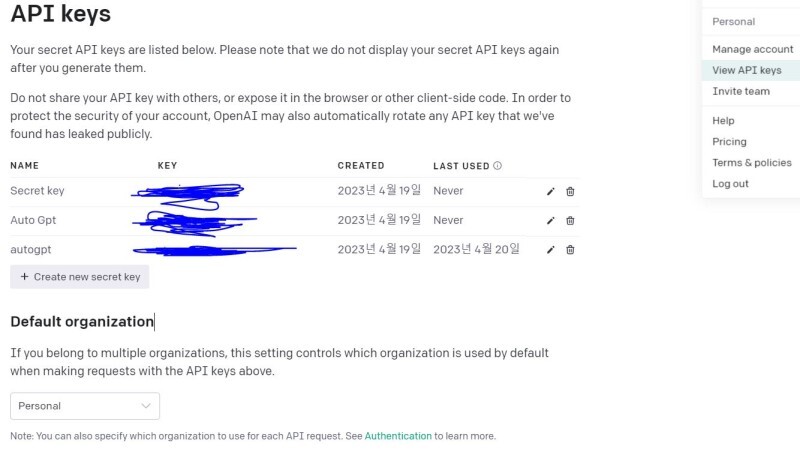
View API keys 누르면 API 생성 가능
이름 지정 후 Powesell에 복붙

3. ElevenLabs API

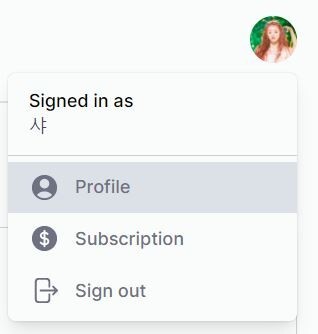
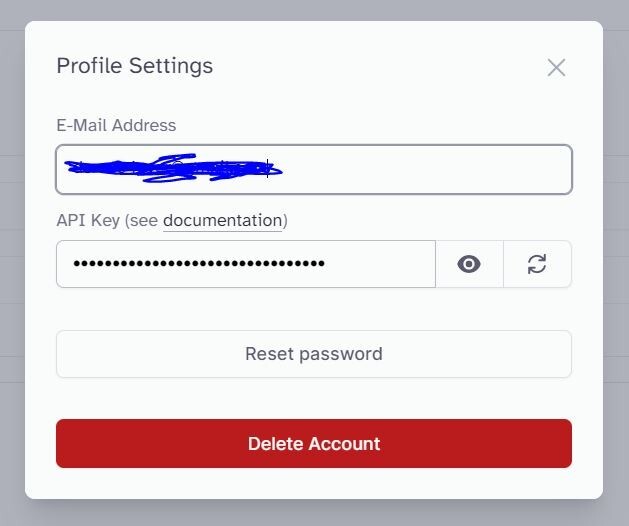
회원가입 후 프로필 누르면 ElevenLabs API 나옴

API key powersell 에 복붙
그럼 voice ID 2개 쓰라고 뜸
다시 사이트 가서

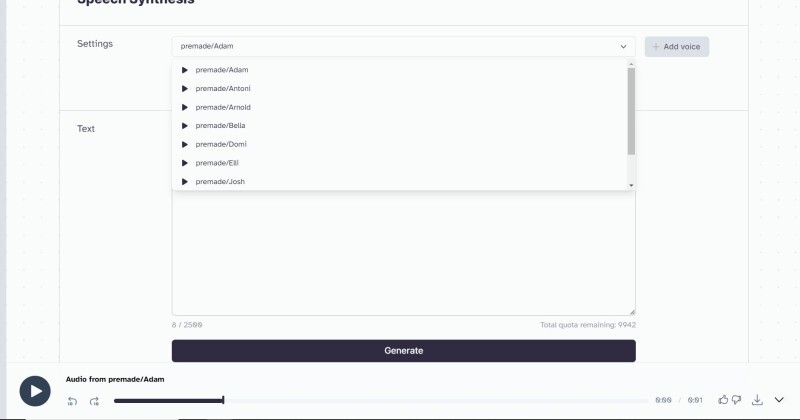
계정 생성, 목소리 맘에 드는거 써보고 2개만 고르세요. 저거 이름이 보이스 아이디

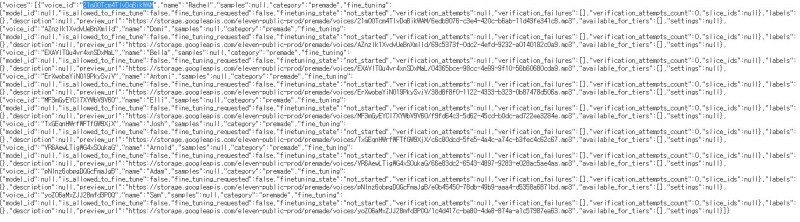
파란색 표시한게 Voice ID임 맘에 드는 목소리 이름 골라서 2개 복사 Powersell에 하나씩 붙여넣기 + 엔터!

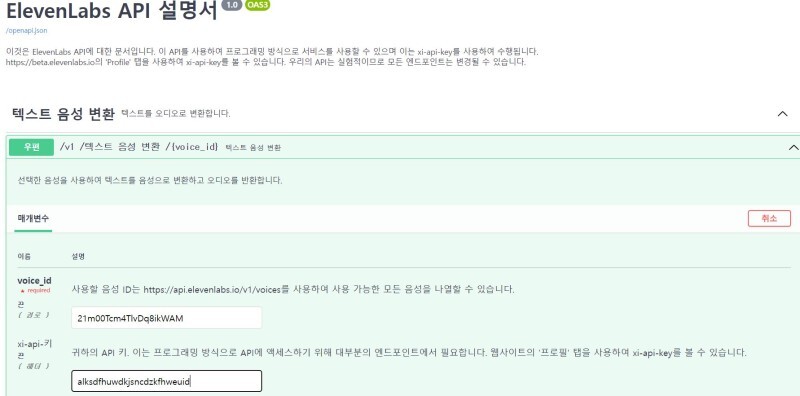
이렇게 얘네가 링크 건거 들어가면 목소리 id 들이 이름옆에 다 써있음. 1개만 가져와서 여기다 붙여넣고

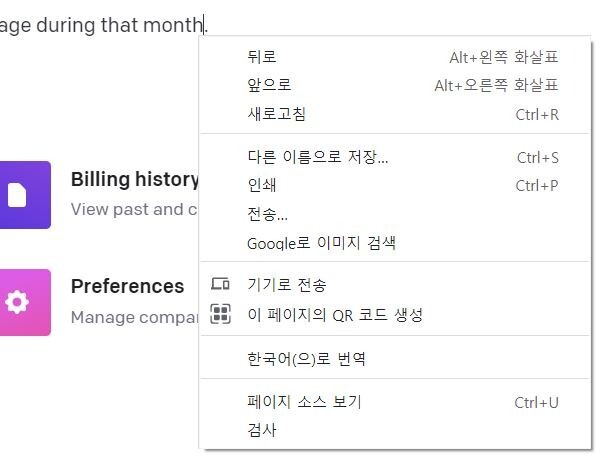
마우스 우클릭 ㅡ 한국어 번역

Execute 눌러야 보이스 생성 완료!

4. HuggingFace 토큰 API 
회원가입 후


이메일 쓰고 내 이메일로 멜 온거 확인 후
New Token 눌러서HuggingFace 토큰 복붙


5. 마지막 단계!

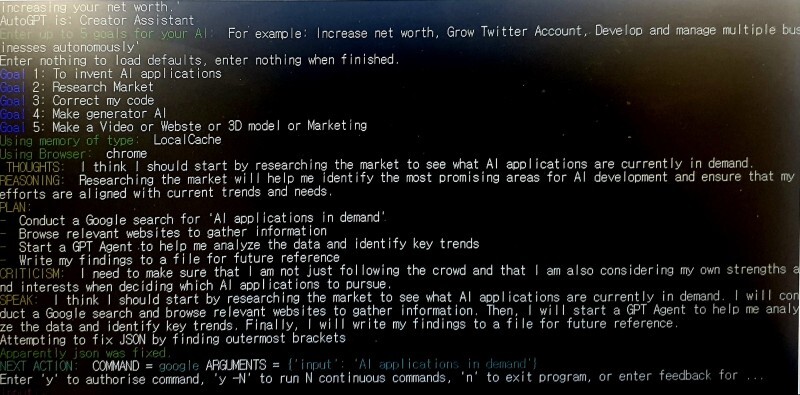
AutoGpt 실행 ! 이름 지어주고 목적 5개 하면 끝!!

메모장에 써놓은 커뮤니티 가서 사람들 어떻게 쓰나, 최신 뉴스 참고 + redit 레딧 사이트가면 AutoGpt 카테고리에 사람 많음

끝!

<메모장 AutoGpt 설치 가이드 총정리.txt>
CD "C:\Users\AWUS\Desktop\AI test"
iex (irm autogpt.tc.ht)

OpenAI API 계정 만들기 + API key 생성 주소 :
계정 https://platform.openai.com/account/billing/overview
API key 생성 https://platform.openai.com/account/api-keys

OpenAI API : <본인 키 복붙해서 저장하세요>

영문 주소 찾기 :
https://www.juso.go.kr/openIndexPage.do

주소 입력란 1은 도로 번호와 이름입니다.
주소 입력란 2는 도시, 주 약어 및 우편번호입니다.
12345 무슨무슨 (도)로
시 (*) : 주 (*) : 우편 번호
영문주소 address line1, 2 쓰는 법 :
https://barrogo.tistory.com/106

Auto-Gpt 깃허브 설치가이드와 파일 주소 :
https://github.com/Significant-Gravitas/Auto-GPT#-image-generation

설치 강좌 유튜브 :
https://www.youtube.com/watch?v=vpT6SkePs38


ElevenLabs VoiceAI key : <본인 키 복붙해서 저장하세요>


ElevenLabs Voice ID 
https://beta.elevenlabs.io/speech-synthesis
1. 21m00Tcm4TlvDq8ikWAM
2. AZnzlk1XvdvUeBnXmlld

Hugging Face Token / API : 
https://huggingface.co/settings/tokens
Hugging Face Token : <본인 토큰 복붙해서 저장하세요>

**IMAGE_PROVIDER=sd
HUGGINGFACE_API_TOKEN="YOUR_HUGGINGFACE_API_TOKEN" 
(Dali 이용해서 이미지 생성하려면 꼭 토큰, API 필요함)**

AutoGpt Community - 설치 도움, 사용 예시, 최신 뉴스
https://autogpt.net/newsletter-thank-you/


★ Error 오류 해결법 ★

1. json 파일 없음
[ec2-user@ip-172-31-19-40 Auto-GPT]$ python3 -m autogpt
Warning: The file 'AutoGpt.json' does not exist. Local memory would not be saved to a file.
Welcome to Auto-GPT! Enter the name of your AI and its role below. Entering nothing will load defaults.
Name your AI: For example, 'Entrepreneur-GPT'
AI Name:
해결법 
VScode 실행. AutoGpt.json 빈 파일 만들어 ai test 폴더에 저장
https://blog.finxter.com/fixed-warning-the-file-autogpt-json-does-not-exist-local-memory-would-not-be-saved-to-a-file/


2. AutoGpt 실행 시 Colorama Module 이 없음 설치하세요! >> chatgpt 
한테 이거 해결해줘 쓰고 오류 Ctrl+C , Ctrl+V


3. -=-=-=-=-=-=-= COMMAND AUTHORISED BY USER -=-=-=-=-=-=-=
SYSTEM: Command evaluate_code returned: Error: The model: `gpt-4` does not exist

천사님 알려주셔서 정말 감사합니다.


Chatgpt4 대기자 명단 등록 https://openai.com/waitlist/gpt-4-api


Auto gpt 한국인 디스코드 서버 개설했습니다.
What's Auto Gpt Discord?
1. 설치 오류 서로 도와주기
2. AutoGpt 로 뭐 만드는지 공유해요.
3. 다른 사람들 작업물 돕기
4. 프로젝트 참여 
5. Auto gpt 정보, AI 비즈니스 아이디어
부자되기 함께해요

반응형

사용기.MindMapsPro.사용포기.앱 삭제함.

MindMap, 마인드맵
반응형

장점


단점

- 위 아래 순서 조절이 안된다. 아래에 있는 항목을 위로 못 올린다.
- url 을 클릭해도 브라우저에 연결이 안된다. 직접 주소 복사해서 브라우저 붙여 넣어야 한다.
- 이미지를 항목에 넣으면 크게 볼 수 가 없다.
- 모바일 앱이 없다.
- 맵을 서버에 업로드했다가, 맵이름 바꾼후, 맵 다운로드하니까 원래 맵이 날라가 버렸다. 최악.
- 파일이 기본적으로 로컬에 저장되는 것 같지만, 찾을 수가 없다. 노트북 포맷하면 데이타 포기해야 할 듯.
 

궁금한 사항

서버에 저장되나 ? 내가 별도로 저장 안해도 보관되나 ?
다른 데서 볼 수 있나 ?
 
반응형